📚 Assignment 4 CMPE2250: RX Interrupts with the UART
📋 Overview
In this ICA you will explore using RX interrupts with the UART to characterize the behaviour of this peripheral when used with interrupts.
1️⃣ Part A
-
Configure USART2 for
115,200 BAUD RATE, enabling receiver interrupts. -
In the ISR for the UART, do the following:
-
Read
RDRregister into a global, volatile variable (this will be just the most recent character received, there’s no need to save characters in a buffer for now). -
Increase a global, volatile counter (this will keep track of the total number of characters received).
-
Check the UART ISR register for errors with framing, noise, or overrun. If any of these errors occur, turn on the user LED.
-
-
In the main loop, do the following:
-
Wait for an interrupt (
__WFI()) -
Make a copy of the received character count into a local variable. Format a buffer to contain a string that contains the last character received, and the total number of characters received. Include \r\n characters in this formatted string. Transmit back the string on USART2.
-
If the user button is being pressed, clear the received character count to zero.
-
-
Run and configure a terminal program of your preference on the PC side of the connection. Execute your code. Ensure that pressing keys in the terminal results in terminal feedback as expected. Correct any errors that you have in your code, including formatting of the feedback string for the terminal.
-
You might notice some abnormal behaviour with the count clearing. More on this in the analysis…
2️⃣ Part A Analysis
-
Why does pushing the user button not clear the count when no characters are being received?
-
How can you use the button to clear the count?
-
What changes could you make to the code to have the user button be more responsive/immediate in clearing the count?
3️⃣ Part B
-
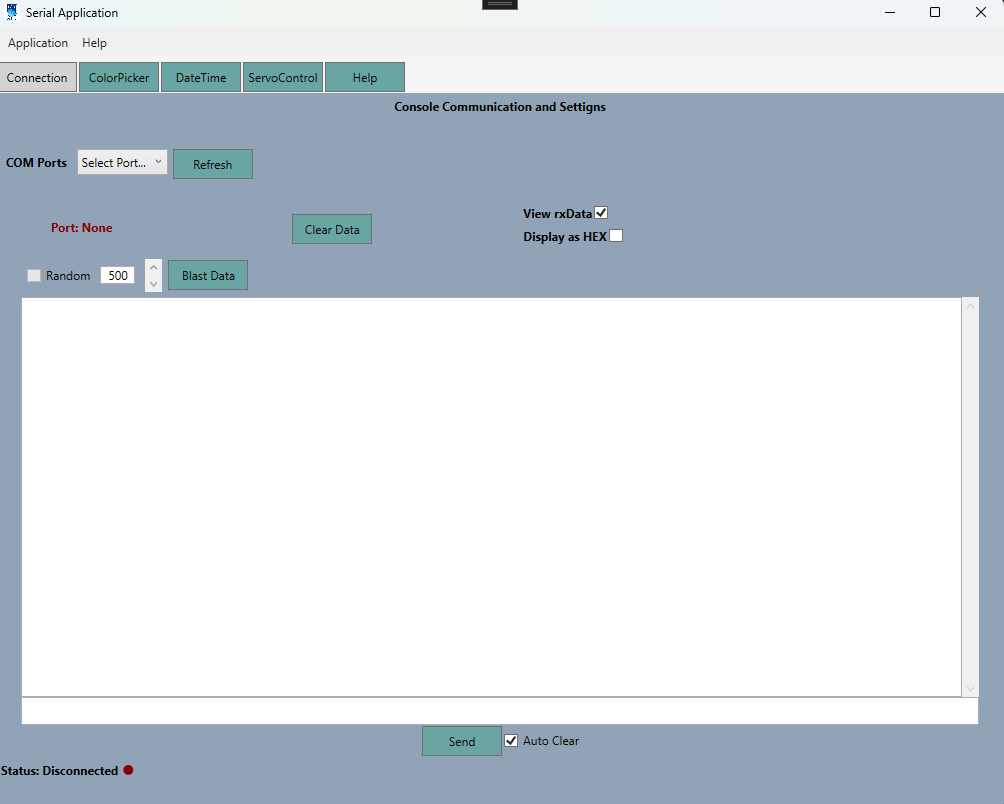
Use the C# application provided in the
InclassDemosrepository and run it on your PC.-
We will be mainly working with the
Connectiontab for this assignment, but feel free to explore the other tabs and functionality of the app as well.
-
Ensure you don’t have any other terminal programs open (Disconnect the port first if so). Run the utility, select your communications port, and click the Connect button. You should see the status change to “Connected” and the button text change to Disconnect.
-
As an initial test, use the Random checkbox to have the application send a random character every 500ms to the micro. You should see the response come back every 500ms, just like the terminal program showed.
-
Once you are sure that the connection is good, uncheck the Random checkbox gain to stop sending random characters to the micro.
-
There’s a button called Blast Data. This button will send a large contiguous block of characters to the micro (this will cause a bit of a delay so don’t hit the button again).
4️⃣ Part B Analysis
-
The Blast Data button sends the string
abcdefghijklmnopqrstuvwxyz0123456789everyX[ms]a total of fifty times. -
The
Xvalue in [ms] is the one entered in the texbox to the left of the button. The acceptable range is between 1[ms] and 1000[ms]. -
The first response line you get back from the micro should indicate the ‘a’ character is received, but what is the next character received?.
-
What you should notice is that you are not receiving a nice ordered set of characters - instead you should be receiving almost ‘random’ or two different characters after fairly large displacements in the number of characters received. What is going on in the micro program that could account for what you are observing? Is there any relationship in the character count gap and the length of the transmitted string from the micro side (and should there be)?
-
What changes could you make to the micro program to have it respond more predictably to the blast data?